Our New PTO Planner: How It Works (and How to Plan Your 2027 Time Off)
You finally have your PTO balance for next year. Now comes the hard part: figuring out where to put those days so they actually feel like a break, not a random Tuesday here and a Friday there.
That's why we built the free theJub PTO Planner. You tell it how many PTO days you have, and it finds the workdays that connect weekends and holidays into longer stretches off. No spreadsheet, no squinting at a wall calendar, and there's nothing to sign up for.
Here's exactly how it works, what each setting does, and how to turn the plan into time off you can actually request.
Questions Answered
- What does theJub PTO Planner do?
- How do you use it, step by step?
- How does the planner decide which days to suggest?
- What does a 2027 plan look like with 10 PTO days?
- How do you add your company's holidays, blackout dates, or a different work week?
- Can you put the plan in your calendar?
What the PTO Planner Does
The idea is simple: a holiday on a Monday or Friday already gives you a three-day weekend. Add a few PTO days next to it, and three days off can turn into nine. The trick is knowing which days to use, and doing that math for a whole year gets tedious fast.
The PTO Planner does the math for you. It looks at the full year, including weekends and U.S. federal holidays, and places each PTO day where it adds the most time off. Then it shows you the result on a 12-month calendar and as a short list of vacations, like "Use 4 PTO days, get 10 days off."
It's free, it runs right in your browser, and you don't need an account.
How to Use the PTO Planner (Step by Step)
Step 1 | Enter Your PTO Days
Start in the PTO days box. Type your number or use the plus and minus buttons. The planner starts at 10 days, but you can set anything from 0 to 60.
Not sure what your number is? Check your offer letter, your employee handbook, or your HR portal. If your company uses one combined PTO bank for vacation and sick time, think about holding a few days back for sick days before you plan everything out.
Step 2 | Pick the Year
Use the Year menu to switch between 2026 and 2027. The default plan uses the U.S. federal holidays for 2027.
Step 3 | Check the Holidays Your Company Actually Observes
This is the step most people skip, and it matters a lot. Under Holidays your company observes, you'll see the year's holidays with checkboxes. The federal holidays are checked by default. A couple of common extras, like the day after Thanksgiving and Christmas Eve, are listed but unchecked.
Private employers aren't required to give you federal holidays off. The U.S. Department of Labor notes that the Fair Labor Standards Act doesn't require pay for time not worked, including federal holidays, and that these benefits are an agreement between you and your employer (DOL). So if your company works on Columbus Day but closes the day after Thanksgiving, uncheck one and check the other. The plan updates on the spot.
Have a company-specific day off, like a summer Friday or a winter shutdown day? Use the + button next to the holiday list to add a company holiday.
Step 4 | Set Your Work Week
The Work week row assumes Monday through Friday. If you work a different schedule, like Tuesday through Saturday or a four-day week, click the days to match. The planner only spends PTO on days you'd normally work.
Step 5 | Add Blackout Dates
Every job has weeks when taking time off just isn't happening: quarter-end close, a product launch, your busiest retail season. Click Add blackout dates and mark them. The planner won't put PTO there.
Step 6 | Review (and Tweak) Your Plan
Your year shows up as a color-coded calendar:
- PTO day: a day you'd request off
- Holiday: a holiday you've marked as observed
- Day off in a vacation: weekends and other free days that are part of a break
- Blackout date: days you've blocked
Want to move a day? Click any working day on the calendar to add or remove it as a PTO day. If you change your mind, Reset to suggestion brings back the planner's version. If changing a setting replaces days you picked by hand, you'll see an Undo option.
Step 7 | See Your Vacations and Export Them
Click Show vacations to see each break listed with its dates, how many PTO days it uses, and how many days off you get. From there, hit Export to download a calendar file (.ics) you can open in Google Calendar, Outlook, or Apple Calendar.
That way your plan lives somewhere you'll actually see it when it's time to put in requests.
Try it now: Open the free PTO Planner and plug in your own PTO days. It takes about a minute.
How the Planner Decides Which Days to Suggest
The planner isn't just picking random days next to holidays. It's built around two kinds of breaks:
- Vacations: longer stretches of about 7 to 10 days, like a full week off framed by two weekends.
- Trips: shorter breaks of up to 5 days, like a long weekend you stretch to four or five days.
It then looks for the combination that gets you the most total time off for the PTO you have, spacing breaks out across the year instead of stacking them back to back. Days you've blacked out, days you don't normally work, and holidays you've unchecked are all left out of the math.
What a 2027 Plan Looks Like With 10 PTO Days
Here's what the planner suggests with its default settings: 10 PTO days, a Monday-to-Friday work week, and the 2027 U.S. federal holidays.
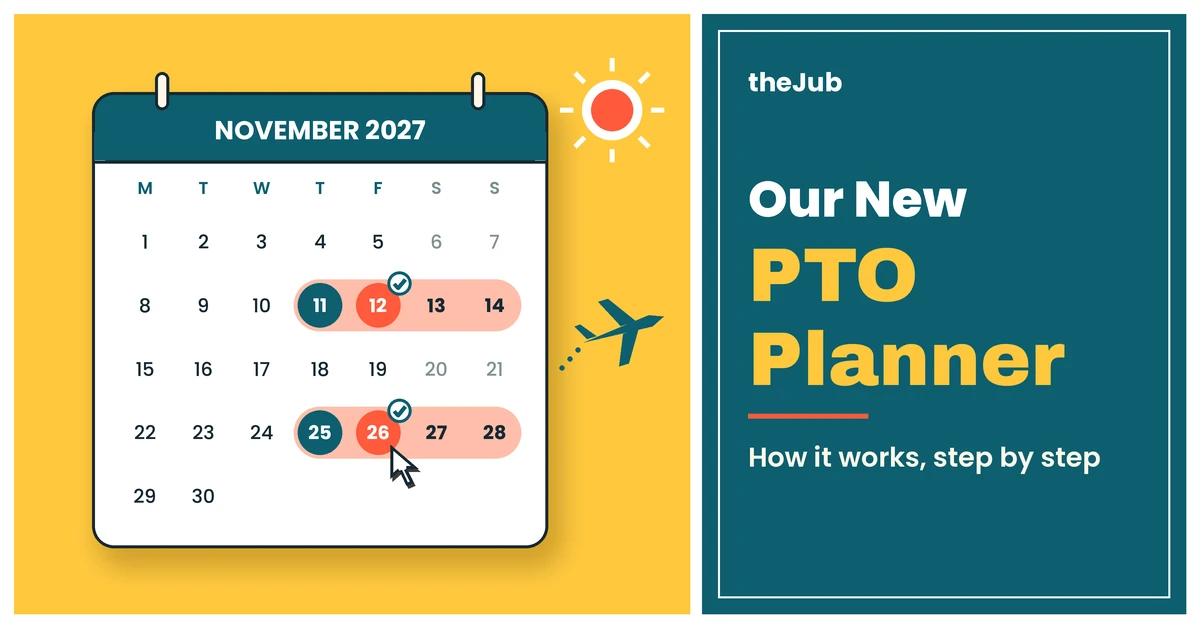
| Break | PTO days used | Days off | |---|---|---| | Sat, Jan 16 – Sun, Jan 24 (around Martin Luther King Jr. Day) | 4 (Jan 19–22) | 9 | | Thu, Nov 11 – Sun, Nov 14 (Veterans Day weekend) | 1 (Nov 12) | 4 | | Thu, Nov 25 – Sun, Nov 28 (Thanksgiving weekend) | 1 (Nov 26) | 4 | | Fri, Dec 24 – Sun, Jan 2, 2028 (Christmas to New Year's) | 4 (Dec 27–30) | 10 |
That's 10 PTO days turned into 27 days off across four breaks.
The December break works because, in 2027, Christmas falls on a Saturday and New Year's Day 2028 falls on a Saturday too. For federal employees, those holidays are observed on Friday, December 24, and Friday, December 31, according to the U.S. Office of Personnel Management. Four PTO days in between give you ten straight days off. If your employer observes those holidays on different dates, update the checkboxes and the plan will adjust.
Your company's holidays can change the picture a lot. For example, when we checked both the day after Thanksgiving and Christmas Eve, the planner switched to three 9-day breaks (mid-January, the week of Thanksgiving, and the week before Christmas), still 27 days off from the same 10 PTO days. That's why Step 3 is worth the extra 30 seconds.
Tips for Getting the Most Out of the Planner
- Plan early, request early. The best weeks (Thanksgiving, the last week of December) are the ones your coworkers want too. Once you have a plan, ask your manager about the big breaks first.
- Use it as a starting point, not a final answer. The planner doesn't know about your best friend's wedding or your kid's spring break. Click days on the calendar to move things around.
- Leave a cushion. If your PTO also covers sick days, plan with a slightly lower number so one bad flu doesn't wipe out your summer trip.
- Re-run it when things change. New job, new PTO balance, new blackout week? Plug in the new numbers and get a fresh plan.
For more ideas on stretching your days off, read our guide on how to squeeze the most out of your PTO, with every 2027 holiday and the best days to take off around each one.
Frequently Asked Questions (FAQs)
Is theJub PTO Planner free?
Yes. It's free to use, and there's nothing to sign up for.
Does the planner request time off for me?
No. It's a planning tool. You'll still need to submit your time-off requests through your company's usual process and get them approved.
Which holidays does it use?
By default, it uses U.S. federal holidays for the year you pick. You can uncheck holidays your company doesn't observe, check common extras like the day after Thanksgiving, and add your own company days off.
Can I use it if I don't work Monday to Friday?
Yes. Change the Work week setting to match the days you normally work, and the planner will only use PTO on those days.
How do I get the plan into my calendar?
Click Show vacations, then Export, and choose the calendar file (.ics). Most calendar apps, including Google Calendar, Outlook, and Apple Calendar, can import it.
Can I plan for 2026 too?
Yes. Use the Year menu to switch between 2026 and 2027.
Related Articles:
- How to Squeeze the Most Out of Your PTO in 2027
- 7 Work-Life Balance Tips and Techniques
- 11 Best Excuses for How to Call Out of Work
- How Do You Ask for a Sick Day by Message?
Wrapping Up | Our New PTO Planner
Your PTO is part of your pay. A little planning helps you get more out of it. To recap how the planner works:
- Enter your PTO days and pick the year
- Check the holidays your company actually observes (and add company days off)
- Set your work week and any blackout dates
- Review the calendar, click days to adjust, and hit Show vacations
- Export your plan to your calendar, then put in your requests early
Ready to see what your year could look like? Open the PTO Planner and give it your number.
We hope this helps. Best of luck, and enjoy the time off!
Title: Our New PTO Planner: How It Works
Category: theGuidance
Tags: PTO planner, PTO calculator, how to plan PTO, vacation planner, 2027 holidays, time off planner, maximize PTO